 |
|||
 |
|||

|





| tutorial | ||||||||||||||||||||||||||||||||||||
multi-language management
Website globalization enables companies to significantly
increase the return on their existing investment into infrastructure,
content development, engineering and overall marketing activities.
The main goal of successful website globalization is to provide
access to the site's content and functionality to visitors in other
target markets and in their own languages. |
||||||||||||||||||||||||||||||||||||
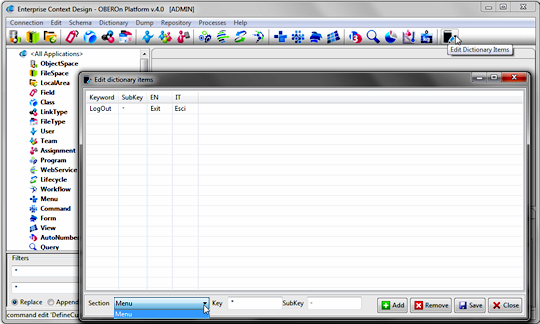
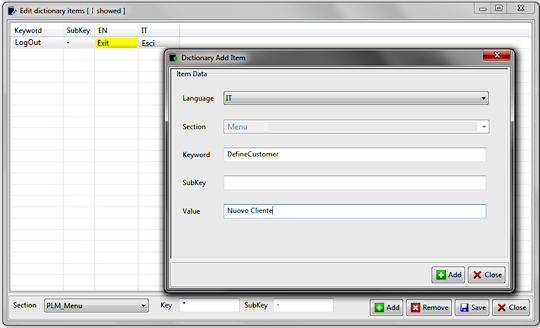
| dictionary put 'DefineCustomer' language 'IT' section 'Menu' value 'Nuovo Cliente'; |
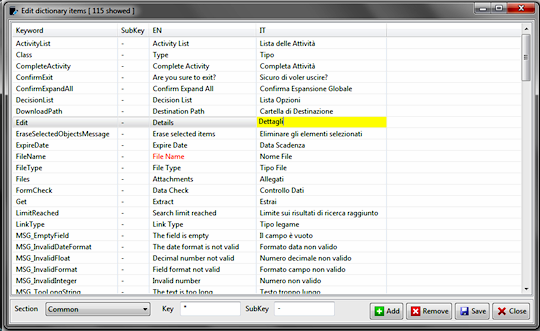
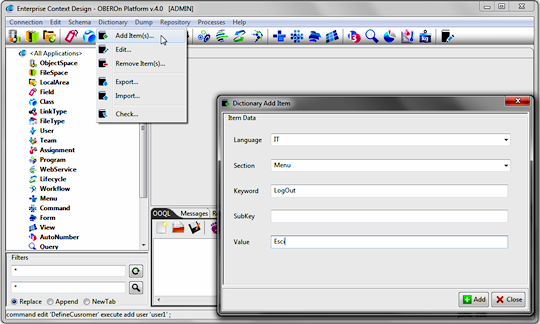
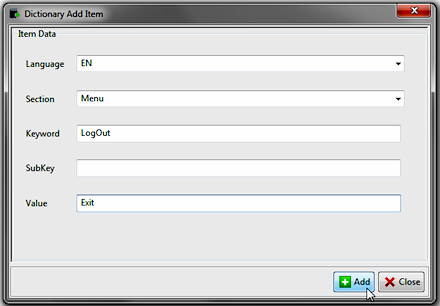
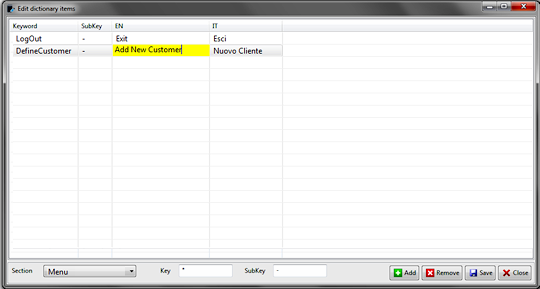
After you have inserted a label translation for the first language,
you can add the translations for the others by compiling corresponding
the table cells (and finally saving the changes).
The OBEROn internal dictionary has many usages, in particular you can translate:
- labels for application menus
- the field range values ( key = field name and subkey = range value )
- any application-form label
- names of action and decision workflow-steps
- platform error/notification messages
- everything you need to use inside the application by keyword substitution <[section_Name,keyword]>
In addition, you can use the dictionary to store simple tables; for example if you need the ZIP codes for some countries, you can create a new section called "ZIP Codes", use the key as the country code (USA,FR,UK...), the subkey as ZIP code and the translation (for a virtual language "XX") to keep the city names. The dictionary OOQL commands will help you to manage this table and to perform queries for information retrieval.
Setting up a multi-language application
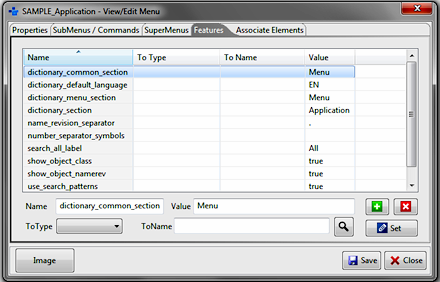
It is very important to set the dictionary parameters into the main
application menu. In particular, when a menu is set as application
menu, you can find the dictionary features "dictionary_menu_section"
and "dictionary_common_section" . These parameters
identify the dictionary sections where the application can find
translations for the menu/command labels and for the common labels
respectively.
The best practice is to create a dictionary section for each application-module,
but there are labels that are common for all modules (like the words:
view, user, navigate, class, object and so on) so the common translations
should be collected in a common section. If you want to put menu
and common translations into the same section, set both feature
values with the same section name.
When the application is identified with a portfolio menu, the parameters are generally associated to this element but you can have different dictionary_section one for each application; f not specifically declared inside the form or the view elements, the search space for label translation will be the union of all these dictionary sections.
Exporting / importing dictionary
translations
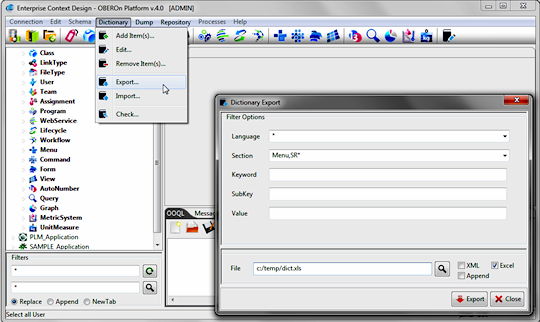
Translations can be exported from one OBEROn database and
imported into another. These operations can be performed by OOQL
commands or directly with the Context Design client. From version
1.5 you can find in the "Dcitionary" menu the following
commands:
- export: extracts translations into a local
file
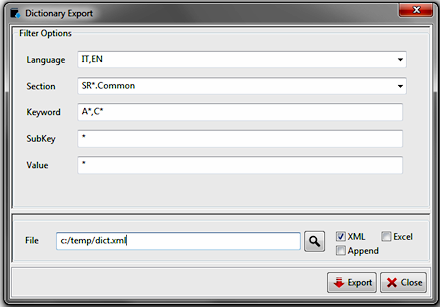
| dictionary select A*,C* language IT,EN section SR*,Common | ||
| exportfile 'C:/Temp/dict.xml' xml ; | ||
Language: list of language patterns to be exported
Section: list of section patterns to be exported
Keyword: list of keyword patterns to be exported
SubKey: list of sub-keyword patterns to be exported
Value: list of translation patterns to be exported
You can use the usual "*" and "?" wildcards
to indicate "any number of characters" and "a single
character" respectively inside a pattern and the comma (,)
character between patterns to define the pattern list.
File: is the name of a new or existing file to which to write
the export data.
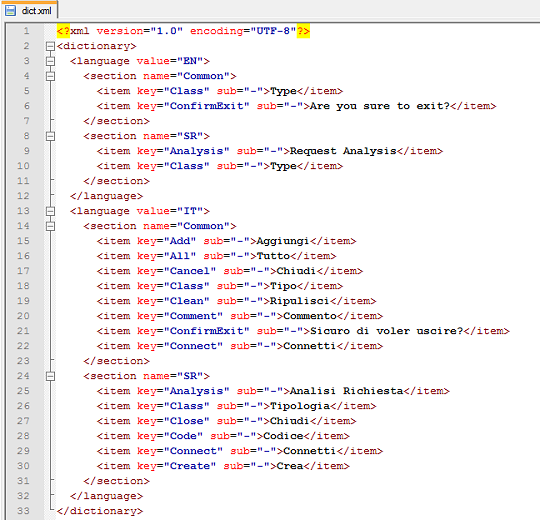
XML: if activated, exports the data in xml format
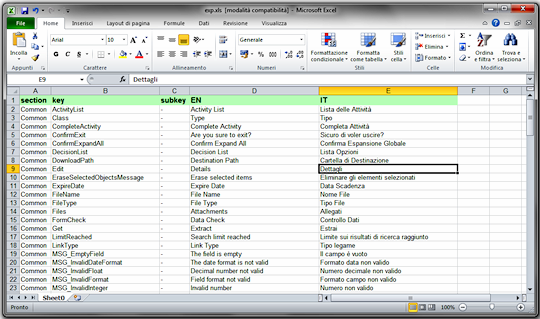
Excel: if activated, exports the data into an Excel datasheet
Append: if activated, appends the export data to an existing
file.
XML Format:
Excel (XLS) Format:
- import: loads some translations from a local file
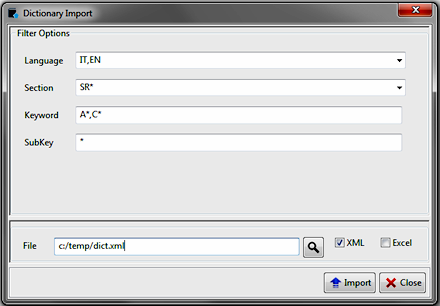
| dictionary import A*,C* language IT,EN section SR*,Common | ||
| importfile 'C:/Temp/dict.xml' xml ; | ||
Language: list of language patterns to be imported
Section: list of section patterns to be imported
Keyword: list of keyword patterns to be imported
SubKey: list of sub-keyword patterns to be imported
You can use the usual "*" and "?" wildcards
to indicate "any number of characters" and "a single
character" respectively inside a pattern and the comma (,)
character between patterns to define the pattern list.
File: is the path and name of the existing file from which
to import the translations.
XML: sets the import file type as XML
Excel: imports the data from an Excel datasheet
Search and add all missed translations to the dictionary
When you create new applications, you need to define menus, commands, forms, views and all other elements for the user interface. Each of these can have labels and texts to be translated into the user language and it is very common to forget to add these translations to the dictionary when they are numerous. OBEROn provides a very usefull tool to help the developers in this work: the Dictionary Check process extracts all potential translable labels from the the schema and verifies that they are correctly mapped inside the dictionary; otherwise you can decide to add them automatically in such way that way as you need only to edit the translations for the different languages.
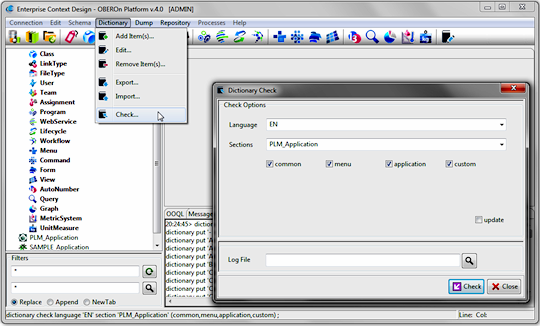
| dictionary check language 'EN' | ||
| isection 'PLM_Application' (common,menu,application,custom) ; | ||
Language: the default language used to check the presence of keywords and eventually to add the missed items to the dictionary (the keyword translations for the default and other languages can be updated/added later in the dictionary table)
Section: specify the type of sections to verify for the selected application:
| common | a set of predefined common labels | |
| menu | all labels for menus and commands associated with the application | |
| application | all class, linktype, filetype , form and view names associated with the application and workflow step decision choices | |
| custom | all form-item translations (labels, section/label/button texts, field ranges and href/image/embed url replacements), all view-column labels; all workflow step translations ( href , mail subject and body replacements ) , all command href replacements |
If the application is specified, the translations are added to the dictionary section declared in the application parameters: common->dictionary_common_section, menu -> dictionary_menu_section , application & common -> dictionary_section / tag specific section
Update: if checked adds the missed keywords to the dictionary, otherwise generates only the OOQL commands to add them manually
Log File: when specified, the check result is written into it
| << forms and views |

Please Read: Privacy Policy and Terms of Use