



tutorial

create new web application

This lesson shows how to simply create a new web application and access it with user accounts.
We assume that Oberon is already installed on a database [installation instructions ] and you have installed and configured a Java application server (like Tomcat or WebLogic).

Download the webapp basic structure file [WAR], save as "oberon_sample.war" and deploy it into your application server; this will create a new webapp folder named "oberon_sample":

Open the "oberon.properties" file and setup the parameters to point to your Oberon database; you can choose the proper settings following the configuration instructions (case C).

Start the java application server and open the web browser to access the application url:

http://<HOST>:<PORT>/oberon_sample

If you try to login with a username and password and you didn't define that Oberon user you will receive a message like this:
"Oberon Login for user '.......' FAILED: #EXFW0002: User ....... does not exist.

On the other hand, if you have already defined the user but not the menu, or if the user hasn't rights to access this application you will get a page without any command:

This mean you have first to define the application schema using the "Context Design" client.
[Open the "oberon.ini" file and set up the parameter to point to the same Oberon database: see the configuration instructions (case A or B)]

First of all you should create one or more users by clicking on the "Add new User" menu button and by compiling the form with the user data. This automatically will give access to the application from the web-browser login page.

The users you have just created are added to the current tab and you can see them also expanding the User node in the administration object tree on the left.

As you saw above, access the application is not very usefull until you don't have the ability to perform actions within it. To define the possible actions that each user can execute inside the application you must create a set of commands organized into menus and submenus.
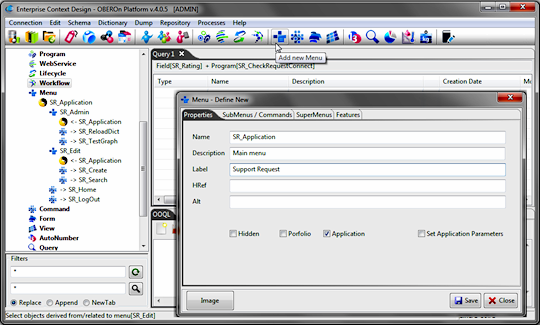
The menu structure is hierarchical as usual and derives from a starting node called the application main menu. You start creating this root node by clicking on the "Add new Menu" button and by compiling the relative form (your user must be enabled for menu management access ).


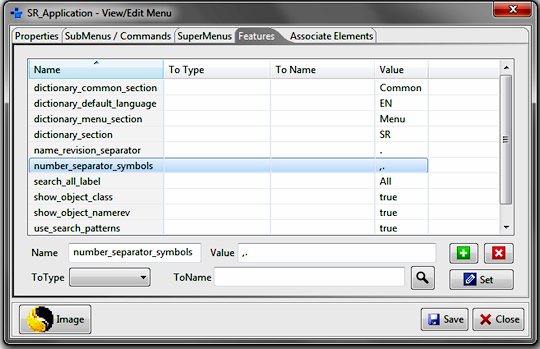
The name of the main menu node must be set also in the "web.xml" file inside the webapp/WEB-INF folder. This file includes the main application settings and in particular the "application_main_menu" that indicates the webapp to load the specified menu structure when the user accesses into the application.

Note: a web application can have a public section (where a user accesses as anonymous) and a private section (where the user has to insert its credential to be able to access). Both public and private sections have a menu bar: inside the private section the access to the menu-commands is based on the user identity, inside the public section the menus are configured according to the "anonymous" user grants. When a web user opens the web-site index page (generally included in the public part) the application automatically logs in to the Oberon platform with the "anonymous_user" account; so, you have to create this user inside the platform and declare the anonymous_user_name and anonymous_user_password into the web.xml file.


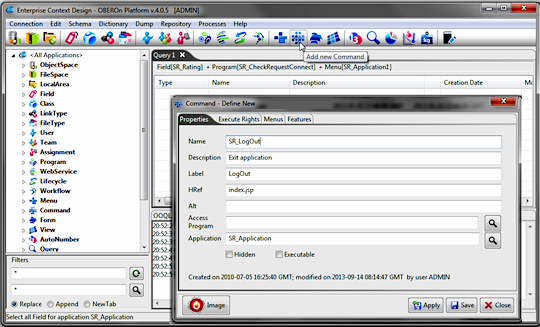
Starting from the main node you can define now the application menu structure: for example you can add a LogOut command using the "Add new Command" button (your user must be enabled for command management access ).

The Commands are the terminal nodes of the menu tree and represent the menu actions: in particular a command calls a web url to perform the related action. A command can be included into one or more menu structures.

You can also define an application module and collect all related command into a sub-menu. For example, you will create a new sub-menu named "AppModule1" with single command inside named "DefineCustomer". This command will open a web form to generate a new Oberon object instance (for example a company customer).

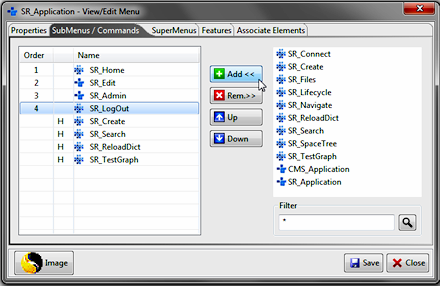
To add a command or a sub-menu to a parent menu, you have to open the menu form (double click on the menu object from the working tab or from the administration object tree on the left) and connect the objects together by searching the command or sub-menu in the "SubMenus / Commands" tab.

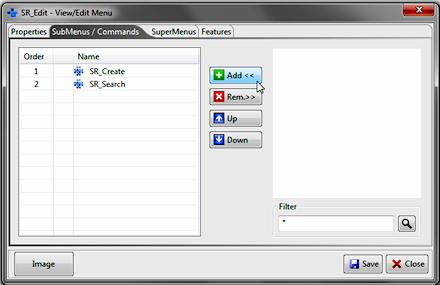
The same action can be repeated for the sub-menu to add a child menu or a command and generate the entire hierarchy.

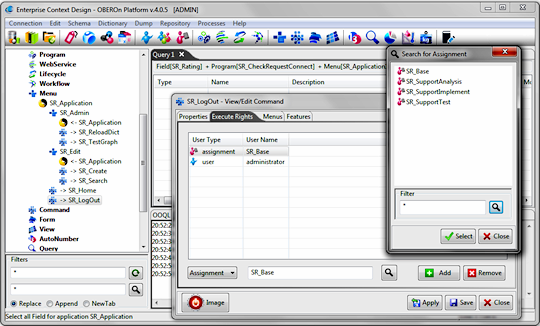
After completed the menu structure, you have to define the user access rights to each command, in other words, you have to indicate the users that can show a given command and so execute it. This association can be done by opening the command form and adding the enabled users in the "Execute Rights" tab.

In many cases it is not convenient to directly associate a command to a user because the actions represented by the command itself must be performed by multiple users. We can then define a role/assignment (Add new Assignment button) common to multiple users and enable the command for the given role. This is also valid for all actions that can be done on the system like object creation, validation, connection, etc.

For example the LogOut command is a basic action that each user should be able to perform; in this case you can create an assignment named "Observer" and associate all defined users to it.

If you connect the assignment "Observer" to the LogOut command then all users that have this role will be able to see and execute the command.

Now you are ready to access the application from a web-browser: simply login by using the username and password.

The user1 can see the Module1 and the child command DefineCustomer because he has the direct access to execute it. He can also see the LogOut command because of the indirect access rights inherited from the Observer role.

On the other hand the user2 can see only the LogOut command because he doesn't have access to the DefineCustomer command.

If your web-application has a public area and you would avoid the login for the guest users then you can create a basic user with a public menu structure and set up the application to automatically login with this user. Simply edit the web.xml configuration file as seen above and set the anonymous_user_name and anonymous_user_password parameters with the guest user account credentials. To access the restricted area you can add a LogIn command to the public menu structure with Href equal to "index.jsp?user=" (the "user" get parameter can be empty, but not null otherwise you create a loop because the simple url "index.jsp" automatically login with the guest user)


You can change the top banner or the menu style editing the images and the style-sheet (style.css) inside the "menu_files" folder.
Menus and commands can have icons (stored into the DB). You can add them with the "Context Design" client by selecting the image files from your local folder.


NOTE:
- The user menu structure is loaded only when the user login, so if you make changes to it you have to re-login to see these modifications.

<< enable communications between users  
© 2008-2012 Mirko Solazzi | Website Templates by IceTemplates.com
Please Read: Privacy Policy and Terms of Use