work with object's attached files
There are many cases where you will want to associate
external files with an OBEROn business object (for example, a Drawing
object can have attached CAD files). To make this association, you
must put the files into the object. This operation is called fileput.
Attaching a file to an OBEROn object allows other users to access
this file that might not otherwise be accessible (for example when
the file is stored into a personal directory of your PC).
A single object may have files in various types; this depends on
the list of filetypes associated to the object's current lifecycle.
The filetype  specifies a kind of file (such as TEXT, OFFICE , CAD etc.) that
may be placed into an object. It defines the default extension for
the filename (.txt, .pdf, .xls etc.) and the mime-type which represent
the programs to launch for document editing, viewing, or printing.
specifies a kind of file (such as TEXT, OFFICE , CAD etc.) that
may be placed into an object. It defines the default extension for
the filename (.txt, .pdf, .xls etc.) and the mime-type which represent
the programs to launch for document editing, viewing, or printing.
Adding files to an object
The OBEROn fileput feature
allows files of various formats to be managed by the object.
The file is logically placed into a filespace
depending on the object lifecycle's
rules and it is physically placed into the local file system or
into a remote file system associated to the filespace.
In particular, the final destination of the file's physical copy
is determined by OBEROn according to the filespace protocol (http/ftp/file/database)
and its associated localareas.
When a filespace doesn't have associated localareas the file is
directly transferred to filespace's storage locations; on the other
hand, when the filespace is locally replicated, the file copy is
transferred to the user's default localarea if it is defined (or
to the filespace otherwise).
All the process is completely transparent for the user.
To add the files, a user should have the fileput privilege activated
in the current lifecycle
stage .
Users can add a files to an object by the "Domain Object Manipulation"
client. Simply search/select the object and push the "File
Put" button.
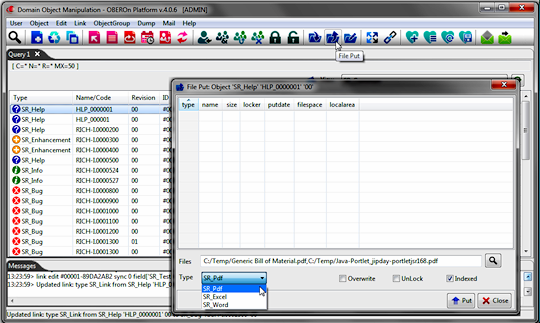
In the "File Put" form you can
choose one or more files from your local file system according to
the selected filetype's extension. You can also activate the overwrite
and the unlock checks; their meaning is:
- overwrite: when activated all file for the same filetype
will be removed before attach the new ones. Note: the fileput operation
has the effect of updating the object with the latest version of
the file; in other words, if a file with the same name for the selected
filetype is already attached to the object, the file content will
be updated with the new content.
- unlock: normally the file is marked as locked when attached
to the object, this prevents other users from editing the file’s
contents until the current user doesn't finish working with it.
Typically, the object holder will want to maintain editing control
over the file. For example, the user may be editing a CAD file and
the file is still undergoing changes. After the edit was completed,
the user would remove the lock (checking this option during the
fileput process).
- indexed: when a file is indexed, its content is extracted
inside the platform and saved into the database; this allows the
users to perform full text search inside object attachments and
to retrieve objects on the basis of these filters. [Requires the
Apache TIKA module]
An equivalent OOQL
command
might be:
| object fileput |
| |
'SR_Help' 'HLP_0000001' '00'
or
'SR_Help' 'HLP_0000001' '00' in 'SR_Space'
or
#00001-2BC91211 |
client
filetype 'JPG' name 'C:/Temp/Generic Bill of Material.pdf' '
C:/Temp/Java-Portlet_jipday-portletjsr168.pdf'
; |
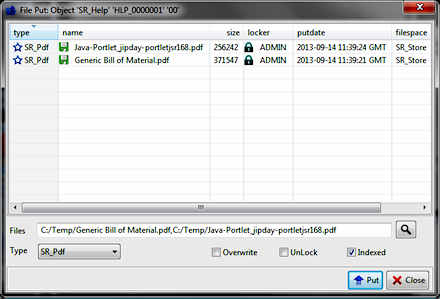
The attached files will not change if
you edit your own personal copy: any edits that you make to that
file will not automatically appear in OBEROn. The only way to have
those changes visible to other users is to either put the new version.
Getting/Removing object's
attached files
The lifecycle definition can also designate when specified users,
teams, and assignments have access to object's attached files. Once
a file is attached to an object, it can be downloaded by other users
who have the fileget access in the object's current lifecycle
stage .
If the file is not locked, another user who have the fileput access
can edit and update it inside OBEROn, in this case you may want
to replace your original copy with the one from OBEROn, or you may
want to edit the file externally.
When a business object file is retrieved, a copy is made and placed
in the folder specified into your local file system. This copy does
not affect the OBEROn copy, still available to other users.
The file is not deleted from the filespace and remains under the
control of OBEROn at all times, until you explicitly delete it.
Users can retrieve one or more files from an object by the "Domain
Object Manipulation" client. Simply search/select the object
and push the "File List" button.
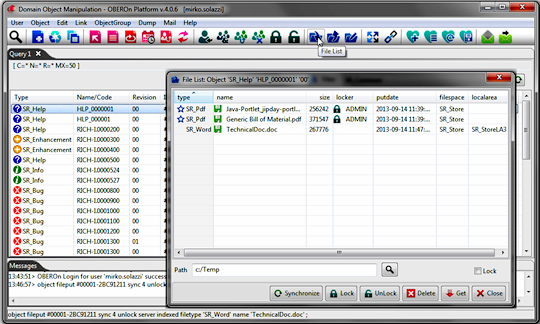
In the "File List" form you
can see all object's attached files; the blue point on the left
and the yellow padlock icon indicate the default filetype and if
the file is currently locked respectively.
For each file is also reported the filespace and the localarea(s)
where a copy of it is physically stored; the brackets indicate where
is placed the most updated file version.
A file can be locked during the fileget so that no
one else can update the copy saved in OBEROn while you are working
on it. When you complete the work on this file, you must put the
file back into OBEROn in order to update the system with the new
version.
Selecting the interested file(s) form the "File List"
form, you can perform two kinds of operations:
- fileget: extract a copy of the files from OBEROn into the
specified Path
| object fileget
|
| |
'SR_Help' 'HLP_0000001' '00'
or
'SR_Help' 'HLP_0000001' '00' in 'SR_Space'
or
#00001-2BC91211 |
| client
filetype 'SR_Word' name 'TecnichalDoc.doc' path 'C:/Temp';
|
Note: When a file is retrieved ["object fileget"
OOQL command] you can also specify
the "synchronize" flag:
- if the most updated file is stored inside the user default localarea,
only the filespace will be aligned with the same version if needed
- if the most updated file is stored in another localarea or in the
filespace, the file will be also copyed to the user localarea (and
in the fielspace if needed)
and the "force" flag:
- if you don't set this flag and the source localarea is not available
you will get an error and not will be able to retrieve the file. Otherwise,
the file will be retrieved from an alternative location (filespace
or localarea) according to a priority based on the update version
number; in this case the syncronize flag will be ignored.
- filelock / fileunlock: allow the user to lock an unlocked file or unlock a previous locked file without the need to download it. Obviously a user can unlock only files locked by himself.
There are two levels for locks: object lock and file lock. These are the rules:
- if an object is locked by another user you cannot lock it or perform other operations ( edit, fileput, progress..... )
- if you have the unlock privilege, you may unlock a locked object, but there is a flag to choice if extend or not the unlock to all attached files. So you can unlock the object but leave the locks on the files.
- if a file is locked by another user you can't update (fileput) the same file (or in other terms you can't overwrite the same file in the filespace)
- if you download a locked file, you can unlock it only if you are the locker
- you can upload and lock files even if there are other files locked by other users
| object filelock or fileunlock |
| |
'SR_Help' 'HLP_0000001' '00'
or
'SR_Help' 'HLP_0000001' '00' in 'SR_Space'
or
#00001-2BC91211 |
| filetype 'SR_Word' name 'TecnichalDoc.doc' name 'Generic Bill of Material.pdf'; |
Note: for executing these operations the user needs the fileput access right
- filedelete: remove the files
from OBEROn
(this process doesn't remove physically the files from the OBEROn
folders, but you will need an additional filespace
defrag
action to completely remove them)
| object filedelete
|
| |
'SR_Help' 'HLP_0000001' '00'
or
'SR_Help' 'HLP_0000001' '00' in 'SR_Space'
or
#00001-2BC91211 |
| filetype 'SR_Word' name 'TecnichalDoc.doc' ; |
Renaming the files
Users can also rename one or more attached files: simply searching/selecting
the object and pushing the "File Rename" button.
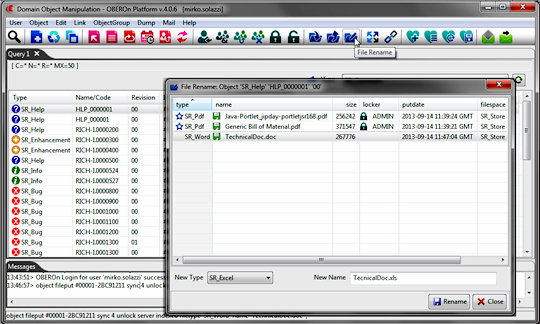
By the "File Rename" form you
can change the Original file name and you can also change the filetype.
The first change has only effect on the meta-data and on the physical
file name when the filespace or the localarea doesn't apply the
file hashing. On the other hand, the filetype change has effect
only on the hashed file names because they take the new filetype
extension.
| object filerename
|
| |
'SR_Help' 'HLP_0000001' '00'
or
'SR_Help' 'HLP_0000001' '00' in 'SR_Space'
or
#00001-2BC91211 |
| |
filetype 'SR_Word' name 'TecnichalDoc.doc' newtype 'SR_Excel' newname TecnichalDoc.xls' ; |
File synchronization
In the "File List" form you can also push the synchronize
button. This process executes a synchronization between the filespace
and all the localareas where the files are present; in other words
the most recent version (for each file) will be replicated for other
storage locations so that all of them will have the same updated
copies. The synchronization command will affect all object's attached
files.
| object synchronize |
| |
'SR_Help' 'HLP_0000001' '00'
or
'SR_Help' 'HLP_0000001' '00' in 'SR_Space'
or
#00001-2BC91211 ; |
|