logical grouping objects
Users, sometimes, may want to collect
objects for a particular purporse or find information about objects
having a particular value of field.
A objectgroup is a logical grouping of business objects created
by an individual user. Groups of objects are often the result of
a query made by a user or can be manually constructed based upon
the needs and desires of him.
The content of a objectgroup can be viewed at any time and
objects can be added or deleted from it easily. However, a user
has access only to objectgroups created by himself.
It is important to realize that objectgroups are not the same as
links between objects. Links also group the business objects together,
but they form a structured collection and are known to all users
who have access to the objects.
Objectgroups must have a unique name assigned within a given user
context but they are local to the context of each user: although
a single user cannot duplicate a group name, different users can
use the same name.
Users can manage objectgroups by the "Domain
Object Manipulation" client.
Objectgroups are often the result of a query (OOQL
command  ): ):
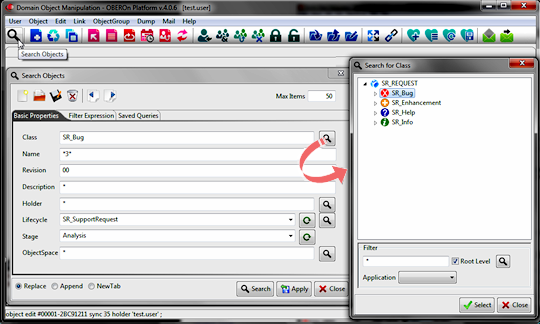
| query
immediate object SR_Bug * 00 |
| |
lifecycle
SR_SupportRequest
stage Analysis
maxitems 50 token xml; |
to save the contents of a query in a group you can click the "ObjectGroup
create" button and set a name and a description for the group:
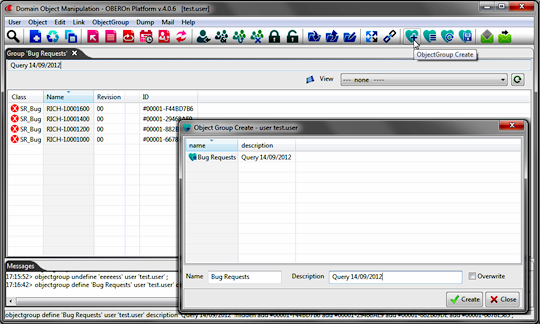
The equivalent "create group"
OOQL command
is:
| objectgroup define 'Bug Requests' user 'test.user' |
| |
description 'Query 14/09/2012' !hidden
add #00001-F44BD7B6 add #00001-29468AE9
add #00001-882B69DE add #00001-6678E585 ; |
or directly from the query:
| query
immediate object SR_Bug * 00 |
| |
lifecycle
SR_SupportRequest
stage Analysis
maxitems 50
objectgroup 'Bug Requests' ; |
NOTE: You can cut, copy, move
objects between query result tabs to compose the group to save,
by selecting the target objects and by using the Edit/Cut ; Edit/Copy
; Edit/Paste or Edit/Paste New from the main menu or the equivalents
keyboard shortcuts.
To retrieve the list of created objectgroups and to
retrieve objects included inside them, you can click the "ObjectGroup
Show" button:
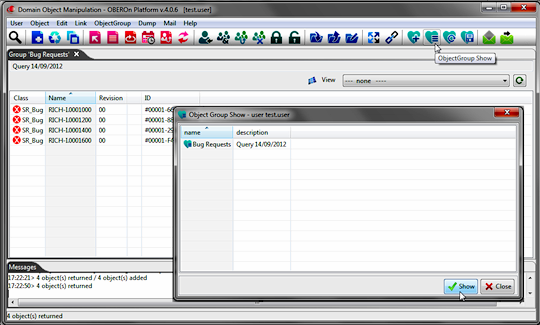
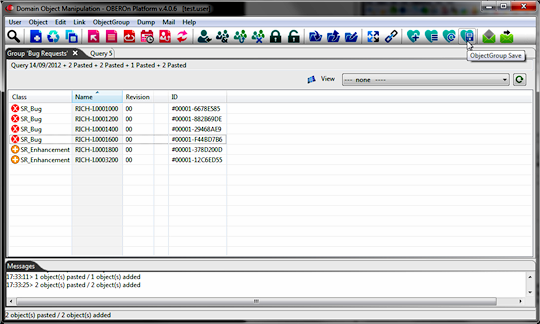
Moreover, you may want perform modification to the
object list, for adding or removing objects or you may refreshing
this list in case of, for example, a running process or a trigger
are updating the objectgroup's status. You can click the "ObjectGroup
Save" and "ObjectGroup Reload" buttons respectively.
| objectgroup
define 'Bug Requests' |
| |
description
'Query 14/09/2012'+ 2 Pasted'
add #00001-F44BD7B6 add #00001-29468AE9
add #00001-882B69DE add #00001-6678E585
add #00001-00000021 add #00001-10DBACA0
overwrite; |
or
| objectgroup
edit 'Bug Requests' |
| |
description
'Query 14/09/2012' + 2 Pasted'
add #00001-00000021 add #00001-10DBACA0; |
A particular objectgroup named "Recent_Objects"
is automatically created for each user to collect the object instances
recently opened in full mode (field value reading); inside these
groups the users can find only objects that are enabled to be listed
in their lifecycle
stage properties (see the "Add To Recent" option).
|