extend the client basic functionalities [since
1.5]
The  OberonClient class contains all basic functionalities
to develop a simple SWT application; when you develop your application,
you will probably need to extend the client with a specialized functions.
For a web-application, you can create additional JSP pages or servlet
linked by command urls, and add/edit css styles or javascript scripts
to implement different behaviours or set the look and feel. OberonClient class contains all basic functionalities
to develop a simple SWT application; when you develop your application,
you will probably need to extend the client with a specialized functions.
For a web-application, you can create additional JSP pages or servlet
linked by command urls, and add/edit css styles or javascript scripts
to implement different behaviours or set the look and feel.
For a desktop application you can extend the basic class (OberonClient)
as follow:
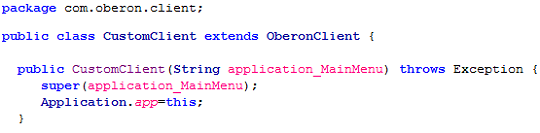
In particular, you should:
- manage the page urls defined inside the commands by adding redirect
conditions to the handleRequest method.
- write the "handle" method to perform the new function(s)
- operate modifications to the SWT control's styles to set the graphical
aspect.
Download the CustomClient example.
Redirecting custom URLs
As said before, the most important method of a desktop
client class is:
handleRequest(ApplicationRequest
request)
This method redirects the request to another specific
method according to the requested page (or URL) declared inside
the ApplicationRequest itself. It means that for each web URL associated
with menu commands there should be a method that represents the
equivalent web-page in SWT format. The handleRequest method, defined
inside the OberonClient class, redirects basic URLs to predefined
handle methods. You can overwrite this method to add your pages
/ functions like in the following example:
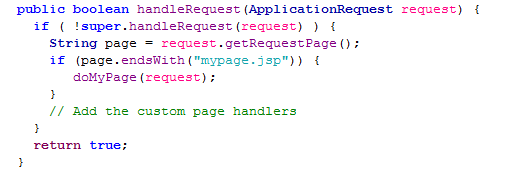
As first instruction, you can execute the basic hadleRequest
method to manage the basic operations and, only if the page URL
in the request is a custom function, you can redirect the request
to a your custom method by adding a specific condition.
NOTE: In some cases, you want also change the behaviour of some
basic operations (for example to create a custom home page). These
modifications can be performed by defining custom methods, named
as the basic method in a manner (for example doHome) to "override"
the predefined actions.
The following example show how to implement a custom
basic function:
mypage.jsp -> doMyPage
|
public void doMyPage(ApplicationRequest
request) {
try
{
|
| |
// Get the session
if you need it
ApplicationSession session = (ApplicationSession) request.getSession();
// Define
title and subtitle for the menu bar
String sTitle = "My
Page Title";
String sSubTitle = "My
Page SubTitle"; |
| |
// Creates
the page container (includes the menu bar with title and
subtitle)
Composite globalpanel = createPagePanel(sTitle,
sSubTitle, false, request);
if (globalpanel!=null)
{ |
| |
|
// Define the
SWT panel
Composite panel = newComposite(globalpanel,
SWT.NONE);
panel.setLayoutData(new
GridData(GridData.FILL_BOTH));
........... Add the (SWT) Panel Content ...........
// Add the page container to
the application shell (tab item or dialog shell)
addPageToContainer(globalpanel,sTitle,request); |
| |
} |
|
}
catch (Exception
ex) { log(ex.getMessage()); }
}
|
|
Changing the look and feel
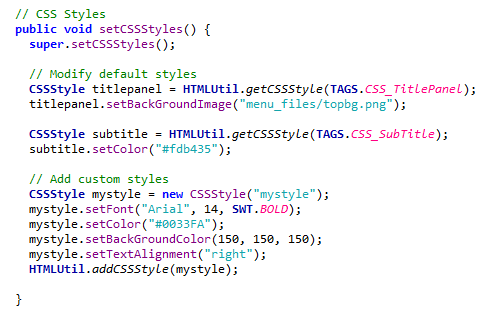
Finally, you can operate modifications to the SWT control's
styles to set the graphical aspect by replacing the basic method
setCSSStyles. In particular, inside this method you can define
new styles or apply changes to default styles; the following example
shows how to write the code:
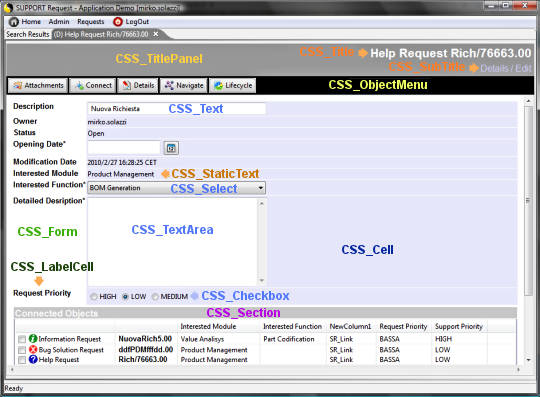
Pre-defined styles are:
| |
CSS_TitlePanel
|
the horizontal banner where the title
and subtitle are placed |
| |
CSS_Title
|
the title text |
| |
CSS_SubTitle |
the sub-title text |
| |
CSS_ObjectMenu
|
the horizontal banner
where the object's contextual buttons are placed |
| |
|
|
| |
CSS_Form
|
the form style |
| |
CSS_Cell
|
the style of form's cells |
| |
CSS_LabelCell
|
field (description)
label |
| |
CSS_Label
|
generic text |
| |
CSS_Section
|
section separator
banner |
| |
|
|
| |
CSS_Text
|
text field style |
| |
CSS_TextArea
|
textarea field style |
| |
CSS_Select
|
combo field style |
| |
CSS_List
|
multi-selection combo field style |
| |
CSS_Checkbox
|
checkbox / radio button style |
| |
CSS_Href
|
web link style |
| |
CSS_Image
|
image and embedded object style |
| |
CSS_StaticText
|
static text |
| |
CSS_ButtonBar
|
button bar style |
| |
CSS_Button
|
form - buttons |
NOTE: Images used to customize the look and feel
must be placed inside the "resources" folder or
in a subfolder of this.
|